Getting started
Sign in to Pinlet
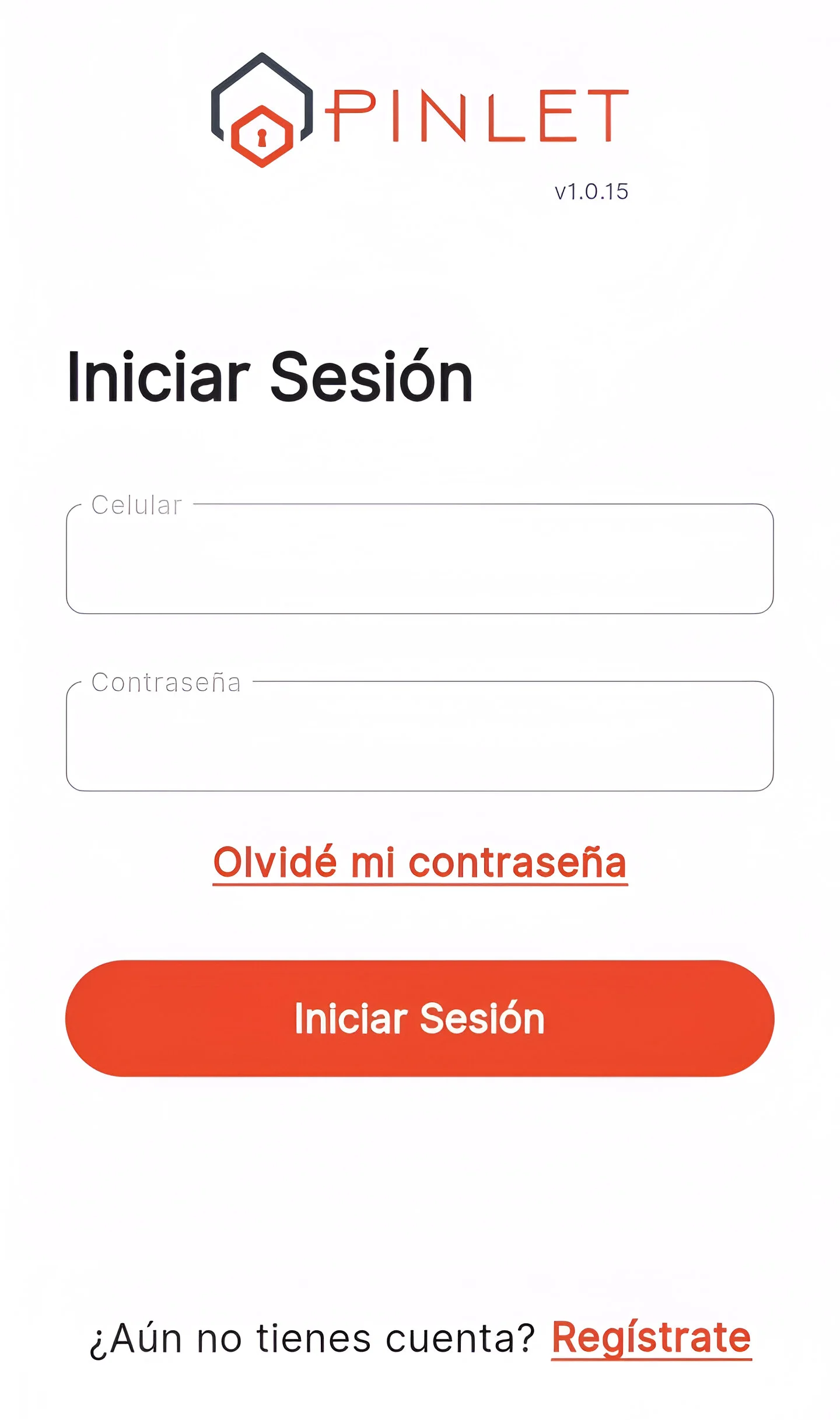
Sign in to your account and view the places where you are registered.
The original PDF and reference app screenshots are in Spanish.
Step by step
Open Pinlet
Launch the app installed on your phone.
Enter your credentials
Select your country code and enter your mobile number and account password.
Tap Sign in
After a successful login, the Registered places screen appears.
What is on the home screen?
Your places, received invitations, the notification bell, settings, credentials, and the + button for adding places.
Original manualPage 5 ↗